
AI tool
AI Background Remover
Upload a product shot, portrait, or logo. Pick fast standard removal or NanoBanana Pro with an optional prompt to steer edges, hair, and backdrop style.
Drop an image or click to upload
JPG, PNG, or WebP
Your output appears here after processing.
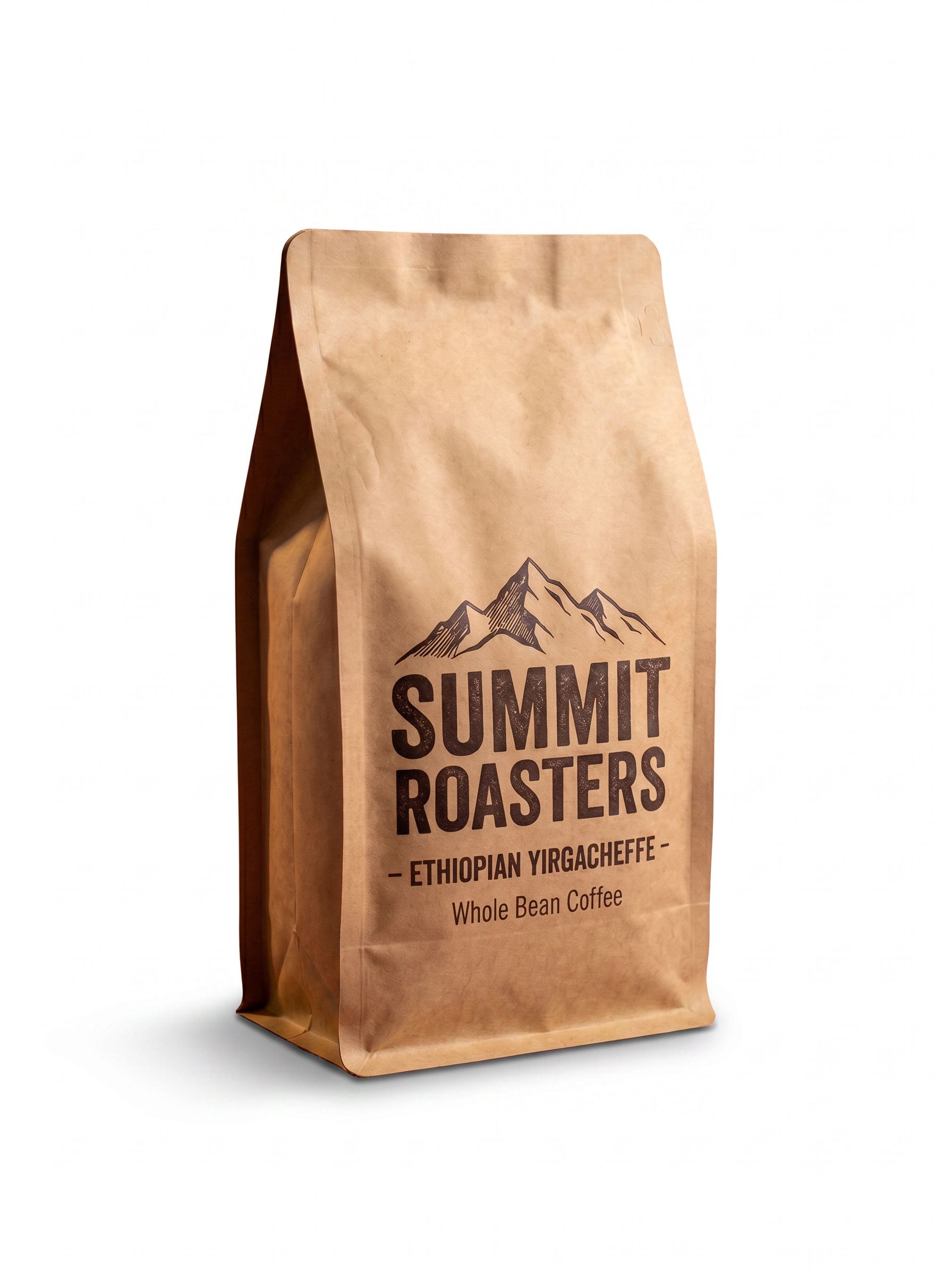
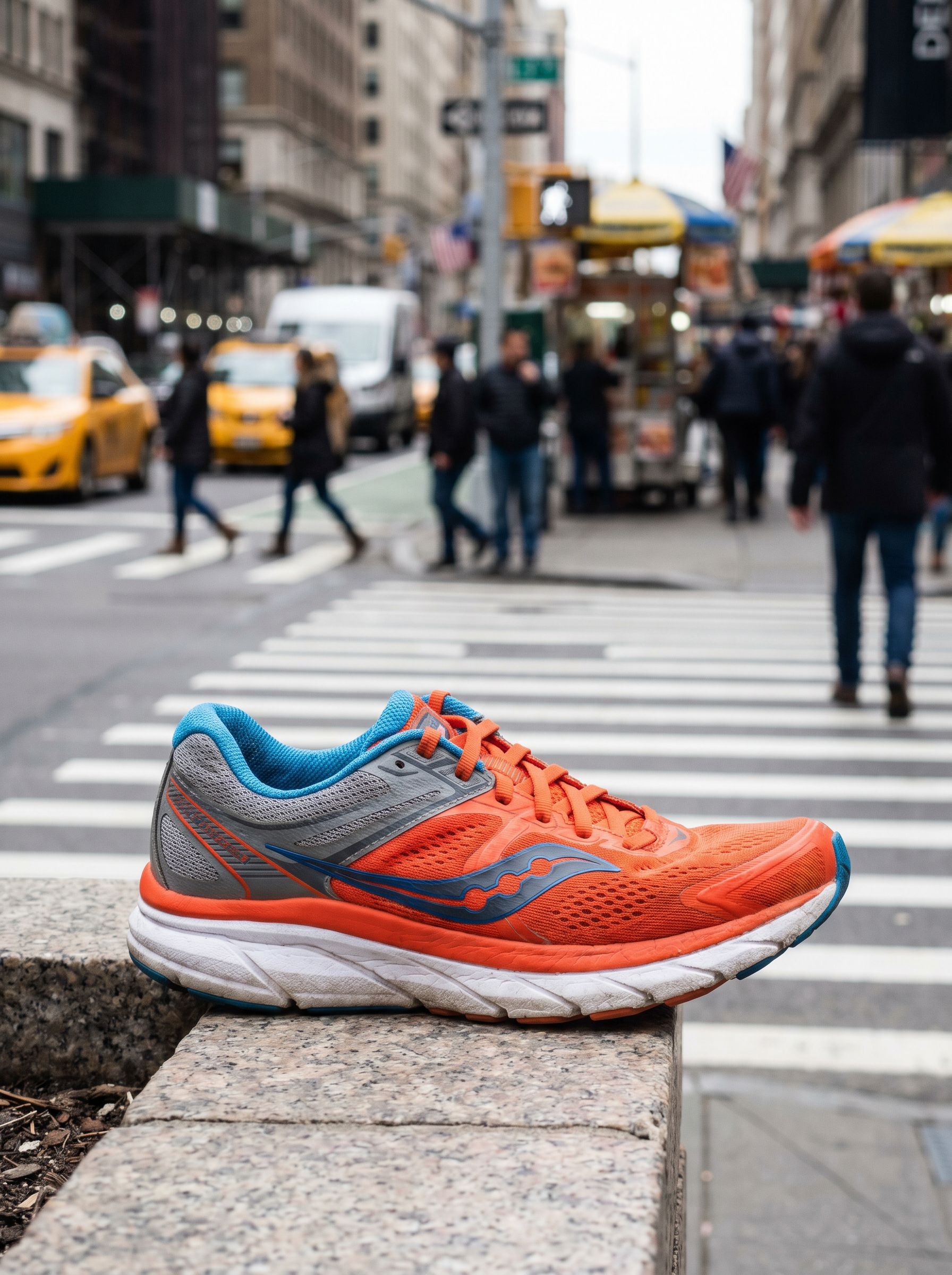
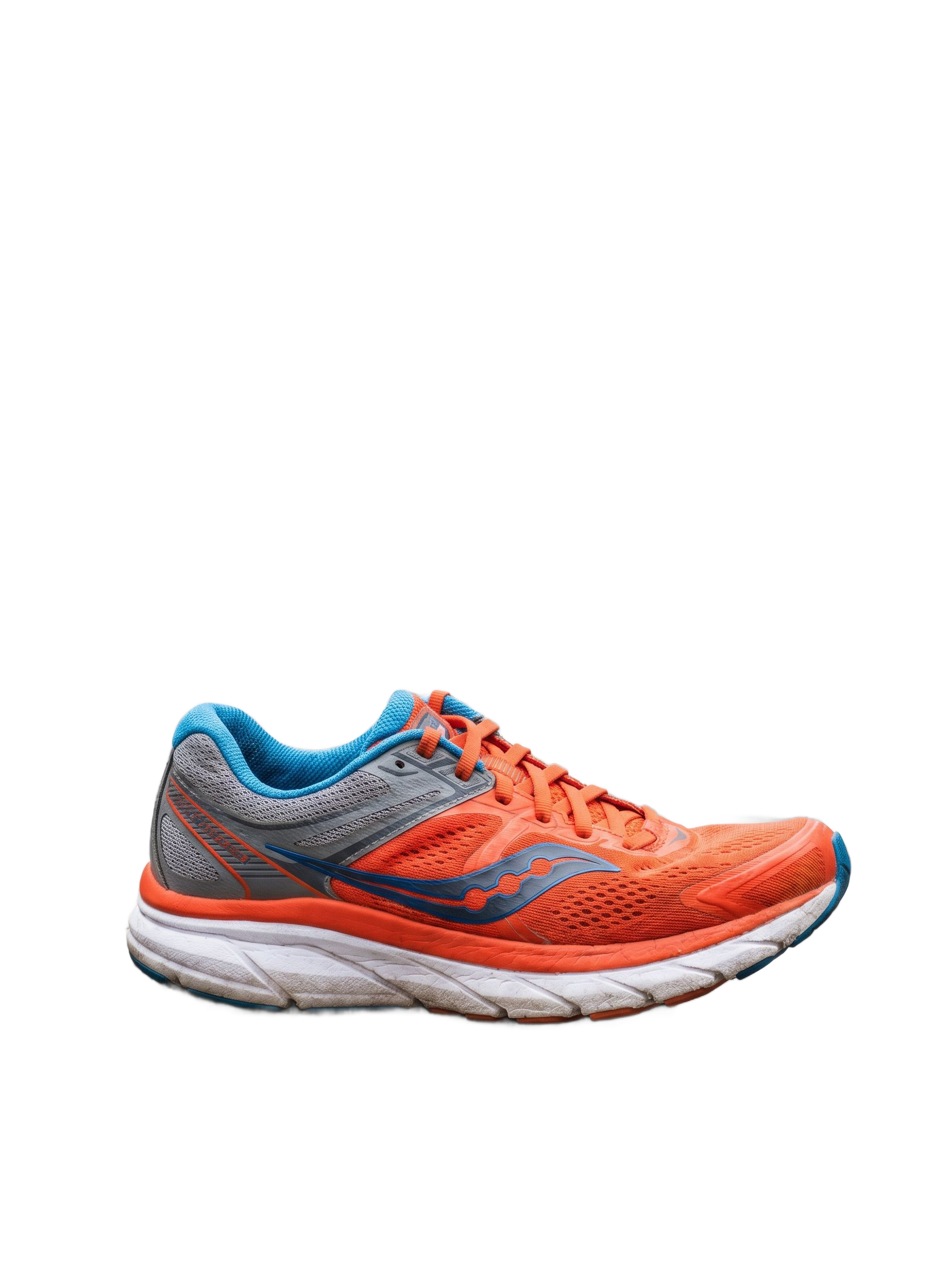
Preview examples
My Creations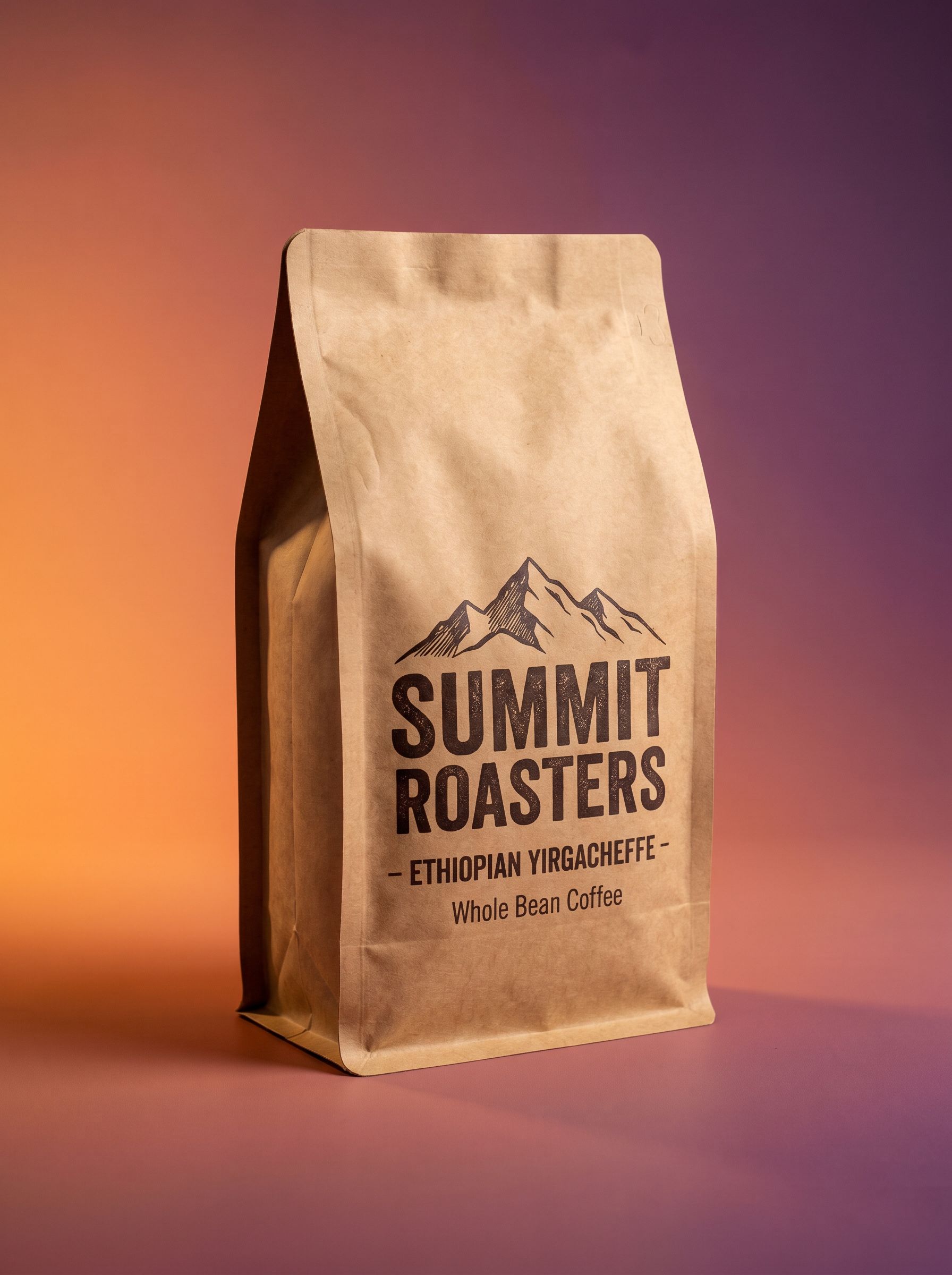


Why use Background Remover?
Everything you need for fast, browser-based background remover — without a desktop plugin stack.
Simple credit pricing
1–101 credits per image depending on resolution. Buy credit packs or subscribe on the pricing page — pack credits are valid for 1 year from purchase.
Workflow
How it works
Upload, run the tool in the studio above, and download — 3 steps for background remover.
Typical use cases

Marketplace listings
Meet white-background requirements for catalogs. Use standard removal for speed or NanoBanana Pro when hair, glass, or label edges need extra care.
Try it now
Stickers & merch
Prep PNG assets for print-on-demand and brand kits — Pro mode helps when you want a specific backdrop color or cleaner sticker outlines.
Try it now
Pitch decks & slides
Isolate speakers and hardware photos without manual pen tool work. Prompt Pro for neutral gray or white presentation backdrops.
Try it nowFrequently asked questions
How does the background remover work?
Upload an image and pick a mode. Standard removal detects the subject and returns a cutout quickly. NanoBanana Pro uses your upload as reference and optional prompt guidance to rebuild the subject on a clean backdrop.
What is NanoBanana Pro background removal?
NanoBanana Pro removal uses our Pro image model with your photo as reference. Leave the prompt blank for default cutout guidance or add a short note (e.g. pure white background, preserve fine hair). It costs more credits than standard removal but helps on picky edges and creative backdrop requests.
How much does each removal cost?
Standard removal uses 1 credit per image. NanoBanana Pro removal uses 101 credits (2K). See the pricing page for credit packs and subscription allowances.
What file formats are supported?
Upload JPG, PNG, or WebP. Outputs are returned as raster images you can download and edit further.
Will fine hair or glass look correct?
Many portraits and products work well on standard mode. Wispy hair, motion blur, or transparent glass may look better with NanoBanana Pro and a specific prompt — or need touch-up in an editor.
Is my upload stored forever?
Images are processed to deliver your result. When account storage is enabled, outputs may be saved to your library; otherwise download promptly after each run.
Ready to try Background Remover?
Upload an image in the studio above, or compare credit packs before you run your first job.